How to Back Up a PLC Program: TIA Portal and Recovery Checklist
How to archive a PLC project, upload from a Siemens CPU and keep the HMI recipes and drive parameters needed for recovery.

To back up a PLC program, archive the current engineering project first. If that project is missing and the CPU permits it, upload the available program from the PLC to a computer and save it as a separate copy. Keep the HMI project, recipes and drive parameters separately so they can be recovered alongside the PLC.
Project archive, PLC upload and device backup
- Project archive: Preserves the engineering project. Use the available online/offline comparison to check whether the project matches the machine.
- PLC upload: Copies the supported program and configuration data from the controller. The original project may contain additional comments, symbols or libraries.
- Device backup: Uses the manufacturer's recovery format. Verify what the backup contains and which hardware and firmware can restore it.
How to upload a PLC program in TIA Portal

- Record the machine ID, CPU model and firmware. Check the compatible engineering software version.
- Identify the correct PLC in the accessible devices list and compare its details with the machine records.
- On supported Siemens CPUs, use Upload device as new station (hardware and software) in the Online menu. Review the preview and confirm that the transfer is from the PLC to the computer.
- Save the archive with the machine ID, date and engineering software version. Reopen it and verify the included blocks and hardware.
See the Siemens TIA Portal V20 guide for supported upload options. Follow the plant's maintenance procedure. If a step requires a CPU state change or writing to the controller, arrange a maintenance window.
How do you back up a Samkoon PLC program?
Identify the exact controller and select the SamSoar release for that series. Once connected with authorized access, use Tool → Upload on supported models to read the program from the PLC to the computer. Save a separate project and reopen it to inspect the blocks.
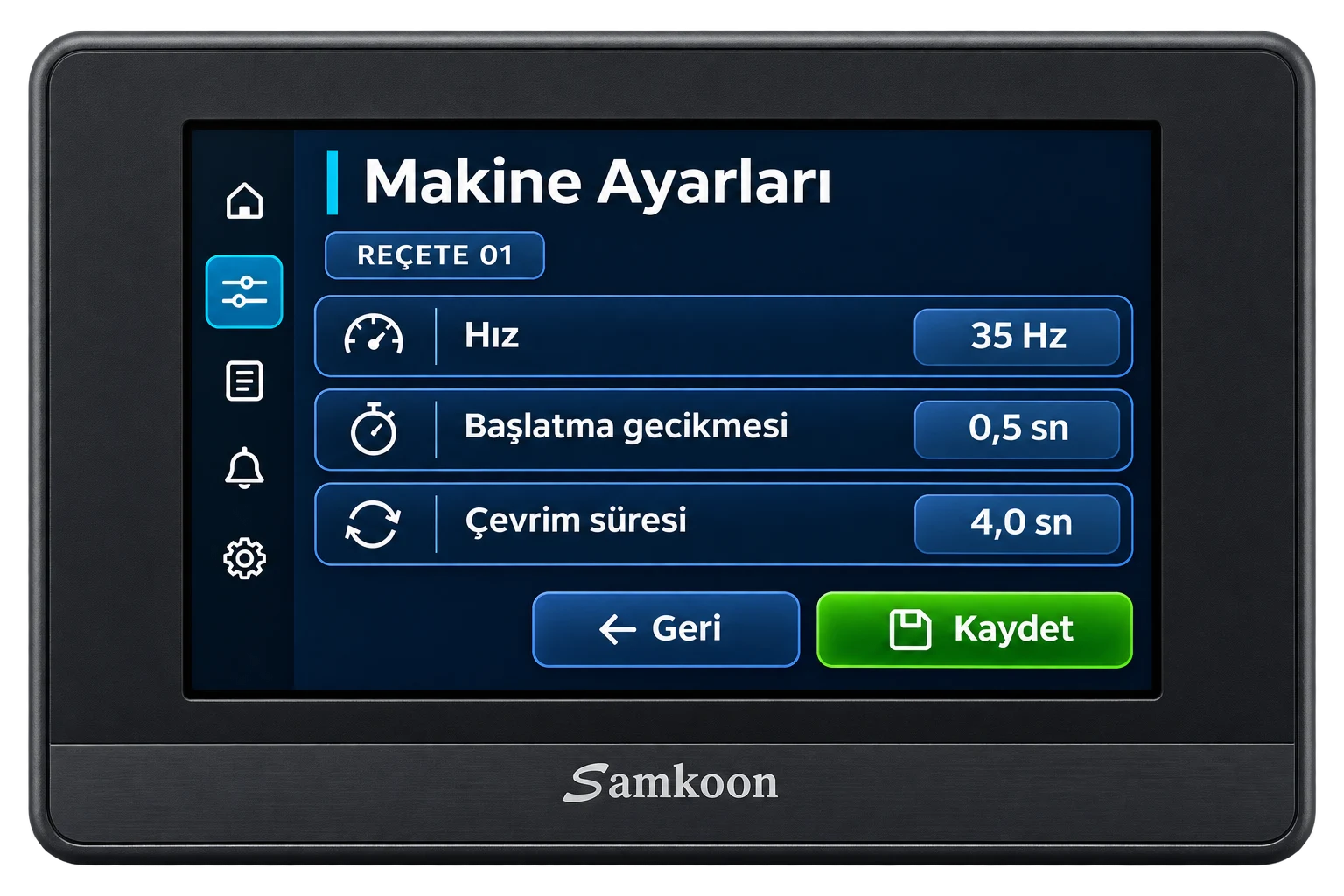
For a combined HMI and PLC, check the screen project and PLC program separately. Use the SKTOOL or SATOOL release listed for the panel. If uploads are disabled or protected, obtain authorized access or request the source project.
Let’s talk about your machine
If you’d like to talk, leave your name and phone number and we’ll give you a call.
Thank you. We’ll be in touch.
How do you back up a Delta PLC program?
For DVP controllers, choose the WPLSoft or ISPSoft release supported by the exact model. Check ISPSoft compatibility for AS and AH controllers. Configure communications and verify that Upload reads from the PLC into the computer.
Save the uploaded program as a separate file. In ISPSoft, check which CPU and module settings were retrieved. Record current production recipes and parameters separately.
How do you back up a XINJE PLC program?
Check the exact model against XINJE’s software list. XC uses XCPPro, XD/XG/XL use XDPPro, and XS uses XS Studio. Verify the connection method for the model and use its supported read command to transfer the program from the PLC to the computer.
Save and reopen the copy. Document or export any operating values stored in retentive registers or in separate HMI recipes.
What else belongs in the backup?
Save the HMI source project, supported panel backup, recipe exports, drive parameters, device models, network addresses, and required libraries. Record current production calibration values and keep access credentials in approved secure storage.
How do you know the backup will restore?
Have authorized staff rehearse recovery on a compatible spare CPU or a test bench. Check HMI communication, recipes and expected I/O against the commissioning plan. Keep the running production controller out of the trial.